Bring Your Own Key (BYOK) Setup Guide
Complete guide to setting up and using your own Gemini API key for manga and webtoon colorization
 Watashi Games|
What is BYOK?
Bring Your Own Key (BYOK) lets you use your own Google Gemini API key with Watashi Colorizer. Instead of buying credit packs, you pay Google directly for API usage and purchase a one-time access plan from us.
This gives you the lowest cost per image and full control over your API usage and billing.
Why Choose BYOK?
Lower Cost Per Image
Google's Gemini API pricing is very affordable. Combined with our one-time access fee, BYOK is the most cost-effective option for high-volume colorization.
Full Control
Monitor your own API usage, set your own spending limits, and manage billing directly through Google Cloud.
Unlimited Potential
With the Unlimited plan, there are no image caps from our side. Your only limit is your Google API quota.
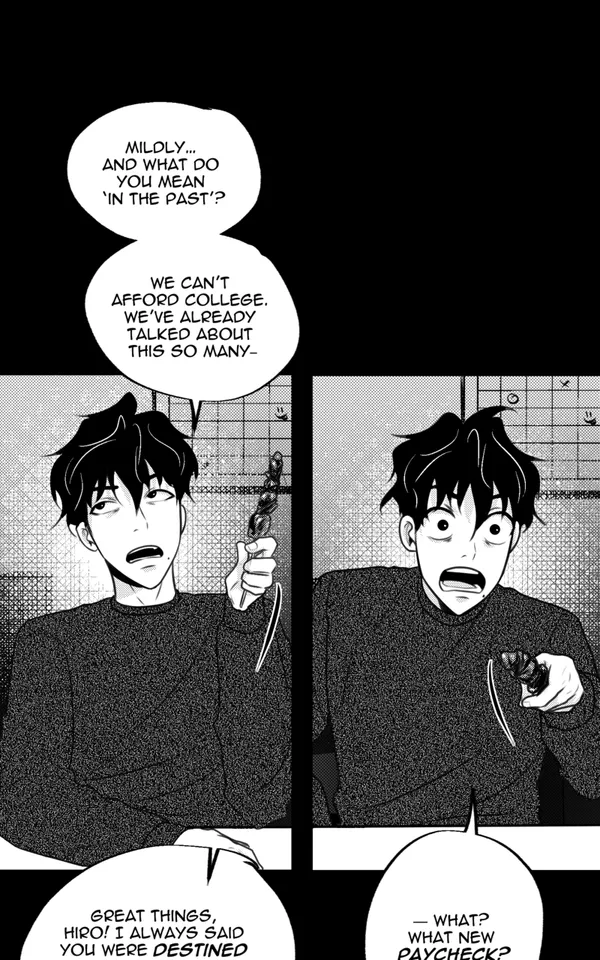
B&W
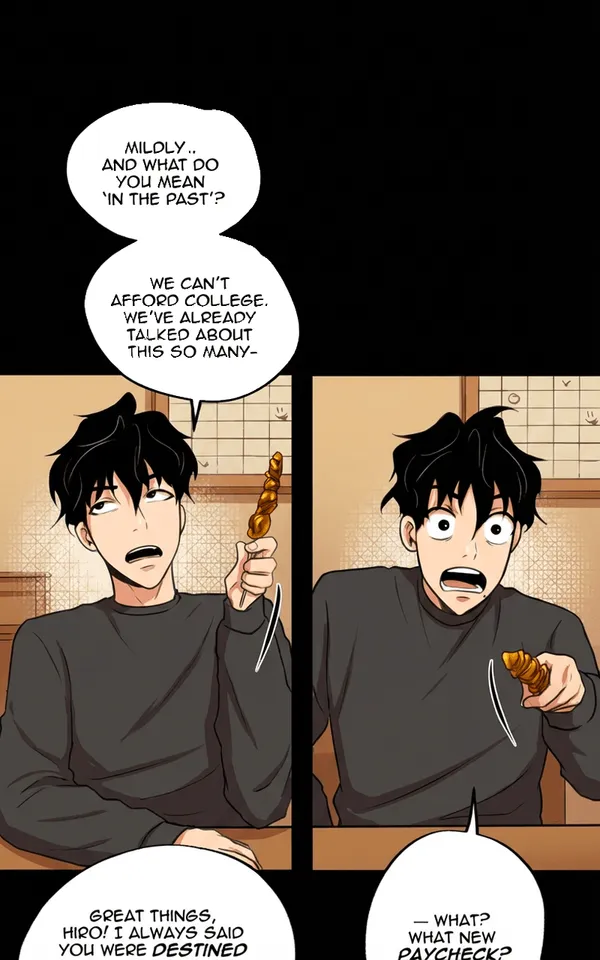
Color
Step 1: Get Your Free Gemini API Key
Google offers free Gemini API keys through Google AI Studio. Here's how to get yours:
aistudio.google.com
Go to Google AI Studio at aistudio.google.com
- Go to Google AI Studio at aistudio.google.com
- Sign in with your Google account
- Click "Get API Key" in the left sidebar
- Click "Create API Key" and select or create a Google Cloud project
- Copy your new API key (it starts with "AIza..." or "AQ.")
Keep your API key secret! Never share it publicly or commit it to code repositories.
Step 2: Upgrade to a Paid Google AI Plan
This is the most important step that many users miss. The free tier has very low rate limits that will cause errors during colorization.
To upgrade your Google AI API to a paid plan:
Go to the Google Cloud Console at console.cloud.google.com
Select the project you created your API key with
- Go to the Google Cloud Console at console.cloud.google.com
- Select the project you created your API key with
- Navigate to Billing and link a payment method
- Enable the "Generative Language API" (Gemini API) for your project
Image generation is billed from the first request — the free tier's image quota is very small, so plan on paying for usage. Expect roughly $0.03–$0.13 per page, depending on the model and how tall your pages are.
Common Error: Free Tier Quota Exceeded
If you see "Your API key has exceeded its free tier quota" errors, it means your key is still on the free plan. Follow the steps above to upgrade to avoid interruptions.
Step 3: Save Your API Key in Watashi Colorizer
Now bring your API key over to Watashi Colorizer:
Open the Account menu (top right corner)
Find the "Bring Your Own Key" section
- Open the Account menu (top right corner)
- Go to Billing settings
- Find the "Bring Your Own Key" section
- Paste your API key and click Save
- Wait for the verification check — you'll see a success message once confirmed
Step 4: Purchase a BYOK Plan
With your API key saved, choose a one-time BYOK plan:
BYOK Access — $19.99
1,000 lifetime images, 5 GB storage. Great for trying out BYOK or smaller projects.
BYOK Unlimited — $39.99
Unlimited images, unlimited storage. Best value for ongoing colorization work.
These are one-time purchases, not subscriptions. You own the plan permanently.
Step 5: Start Colorizing!
That's it! Your workflow is exactly the same as before — upload images, select a palette, and colorize. The only difference is that API calls now go through your own key.
You can monitor your API usage in the Google Cloud Console under the "Generative Language API" section of your project.

B&W

Color
Troubleshooting
"API key has exceeded its free tier quota"
Your API key is on Google's free plan. Follow Step 2 above to link a billing account and upgrade to a paid plan.
"API rate limit exceeded after multiple retries"
You're sending too many requests too quickly. Wait a few minutes and try again, or request a quota increase in Google Cloud Console.
"API key verification failed"
Double-check that you copied the full key (starts with "AIza" or "AQ.") and that the Generative Language API is enabled for your project.