How to Colorize Manga for Scanlation: A Team Workflow Guide
A practical guide for scanlation teams who want to add colorized versions to their releases — covering bulk workflows, palette management, and cost optimization.
 Watashi Games|
Why Scanlation Teams Are Adding Color
Scanlation teams have traditionally released manga in its original black-and-white format. But reader demand for color versions is growing — especially for series that compete with natively-colored webtoons on platforms like Webtoon and Tapas.
The problem has always been resources. Manual colorization takes hours per page, and most scanlation teams are volunteer-run. AI colorization changes the equation — a single team member can colorize an entire chapter in the time it takes to typeset a few pages.
Bulk Workflow: Processing Full Chapters
The biggest advantage for scanlation teams is bulk processing. Instead of uploading and downloading one image at a time, you upload an entire chapter's worth of pages and process them in a single batch.
- Create a project for each series — this keeps your palettes, context, and settings organized.
- Upload all chapter images at once. The tool handles sorting and sequencing automatically.
- Set up your character palette once per series. Every subsequent chapter uses the same palette for consistent colors.
- Hit colorize. The smart batching system groups pages that share scene continuity, so cross-page color consistency is handled automatically.
- Review results and use edit mode for any pages that need touch-ups. Download the full chapter as a ZIP.
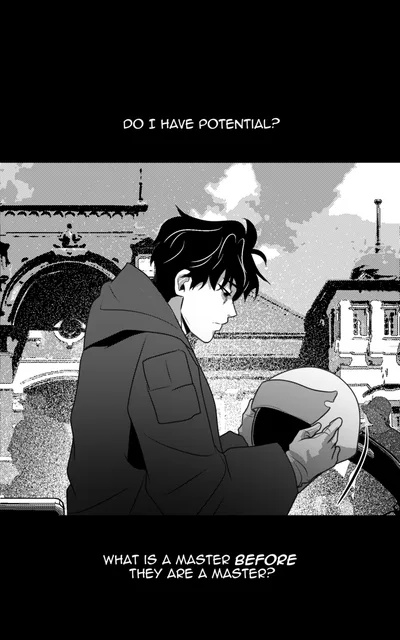
B&W

Color
Palette Consistency Across Chapters
The biggest challenge in series colorization is maintaining consistent character colors. Without guidance, the AI might make the protagonist's hair brown in chapter 1 and black in chapter 2.
Character palettes solve this. You create a palette once — describing each character's hair color, eye color, skin tone, and typical clothing colors — and apply it to every chapter. The AI follows these descriptions as instructions.
Context learning takes this further. After colorizing a chapter, the tool can learn environment-specific colors (like 'school hallway: pale green walls, brown lockers') and apply them in future chapters that include the same settings.
BYOK: Cost Control for Teams
For teams processing large volumes, Watashi Colorizer supports Bring Your Own Key (BYOK) mode. Instead of purchasing credits, you use your own Google Gemini API key directly.
This means you pay Google's API pricing directly — which can be significantly cheaper for high-volume work. You also get full control over your API usage, rate limits, and billing.
Setup is simple: paste your Gemini API key in the settings panel, and all colorization requests will use your key instead of credits.
Team Workflow Tips
Designate a colorization lead
Have one person manage palettes and colorization settings. This ensures consistency across chapters and prevents conflicting style choices.
Colorize after cleaning, before typesetting
The ideal workflow is: raw scans → cleaning/redrawing → colorization → typesetting. Colorizing before typesetting means the AI works with clean panels and the typesetter works with colored pages.
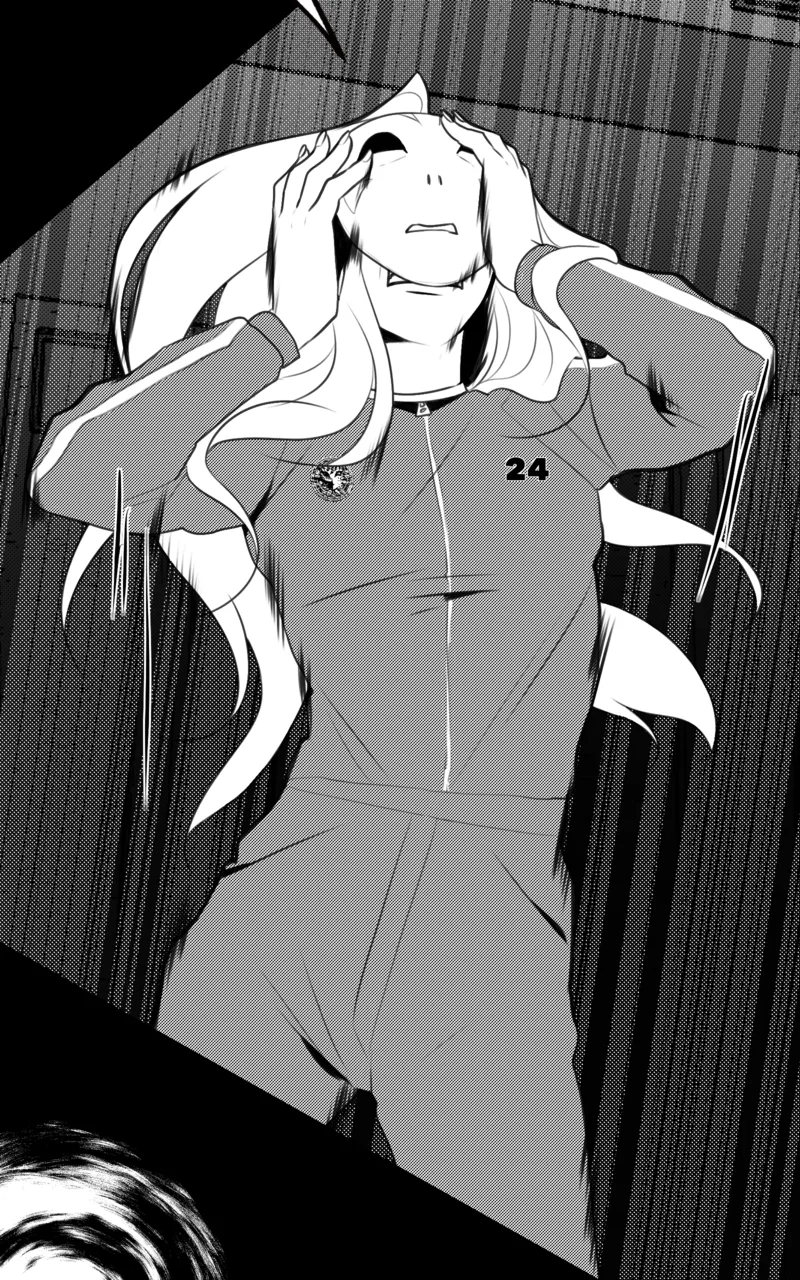
B&W

Color
Build your palette from chapter 1
Start your character palette with the first chapter and refine it as new characters appear. This creates a living reference document for the entire series.
Use edit mode for flashbacks and special scenes
Flashback panels, dream sequences, and mood shifts often need different color treatment. Use edit mode with custom instructions like 'sepia-toned flashback' or 'blue-tinted night scene' for these.